Accessible product instructions

SmartCane user guide

Learn the tactile controls, the result of each action, and the planned audio and vibration feedback.

Controls designed to be identified by touch

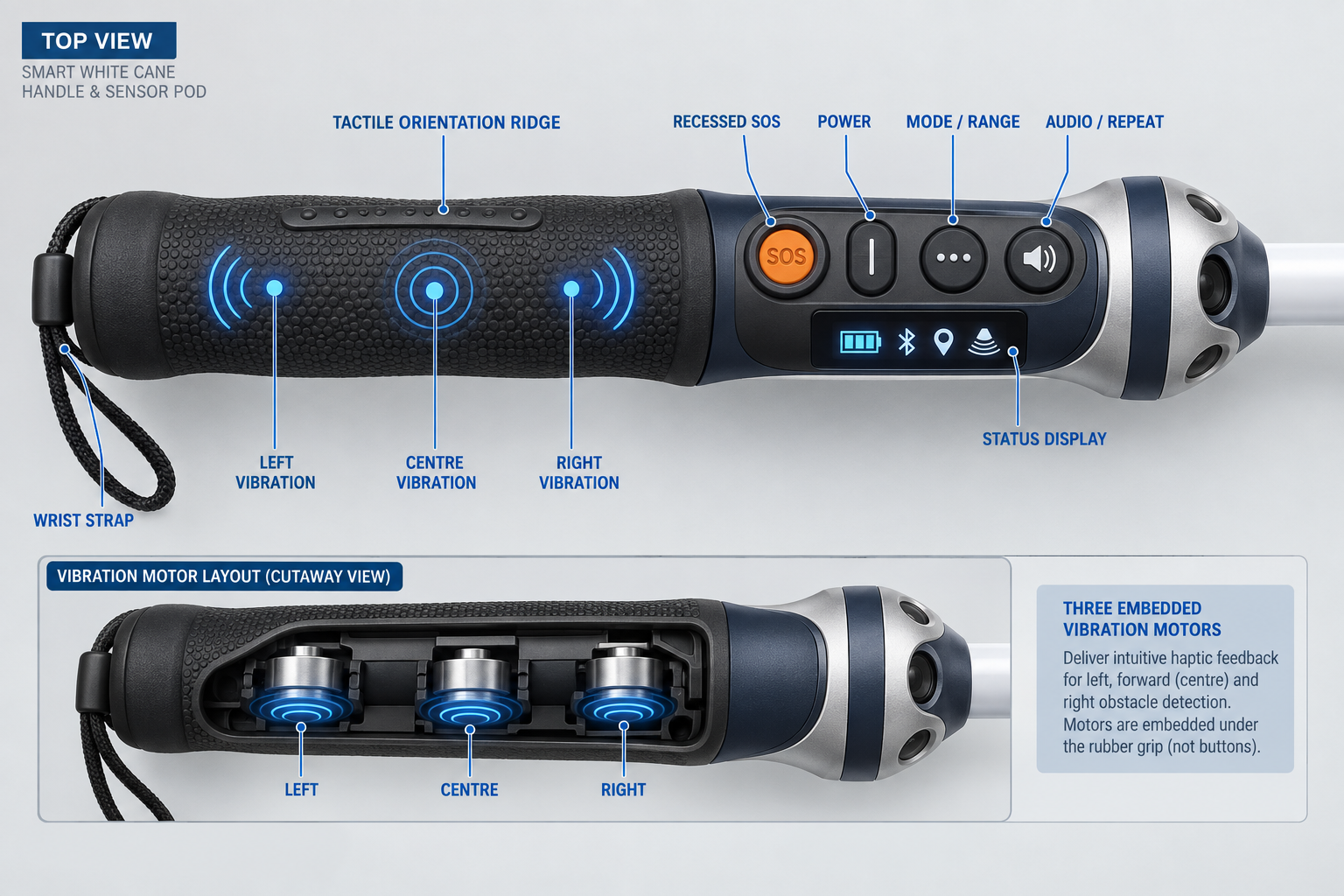
The controls are arranged from left to right as SOS, Power, Mode/Range and Audio/Repeat. The recessed SOS button is deliberately shaped and separated to reduce accidental activation.

Try the samples: Select any “Play” button below. Spoken samples use your device’s built-in voice. Vibration samples play an audible phone-style buzz and will also activate compatible mobile-device vibration where supported.
SmartCane handle showing the SOS, Power, Mode and Audio buttons
Handle reference: recessed SOS, Power, Mode/Range and Audio/Repeat controls.
Complete reference

Handle, controls and vibration zones

Use this labelled view when learning the position of each button and tactile feedback zone.

Complete labelled SmartCane handle diagram with wrist strap, tactile orientation ridge, SOS, Power, Mode and Audio buttons, status display, and left, centre and right vibration motors
Button reference

What each button does

Each card explains the action, expected result and feedback you should receive.

SOS

Recessed SOS button

Action
Press and hold for 3 seconds. A short cancellation period helps prevent accidental calls.
Result
The companion phone app calls the selected SOS helper and can send an SMS with available location and battery status.
Feedback
Urgent vibration followed by “SOS started” and “Calling your SOS contact.” Use the phone microphone and speaker for the conversation.

SOS depends on setup, power, phone and network availability. It does not replace calling emergency services.

I

Power button

Action
Press and hold for 2 seconds.
Result
Turns electronic sensing and feedback on or off. The physical cane remains usable when electronics are off.
Feedback
Start-up tone and one short vibration when ready; descending tone when powering off.
•••

Mode and range button

Action
Short press to cycle through Near, Standard and Long range.
Result
Changes the planned forward-sensor range for the current surroundings.
Feedback
Speaks the selected setting and confirms it with one, two or three short pulses.
🔊

Audio and repeat button

Action
Short press to repeat the latest status. Press and hold to toggle routine spoken feedback.
Result
Repeats battery, range or connection information, or changes the audio preference.
Feedback
Speaks the latest available status. Critical alerts should remain available even when routine audio is reduced.
Obstacle feedback

Vibration patterns in the handle

The physical product uses separate vibration zones. These audio demonstrations imitate a mobile phone vibrating so the timing can be previewed on this page.

Status display symbols

▮▮▮Battery

Shows approximate remaining charge.

Bluetooth

Shows phone connection status.

Location

Shows whether a planned location feature is available.

Sensors

Shows sensing status or a sensor warning.

Important: SmartCane is a supplementary awareness product. Alerts cannot be guaranteed. Continue using the cane tip, proper mobility techniques, professional orientation and mobility training, and personal judgement. Practise all feedback in a controlled environment before everyday use.